Azure Virtual Desktop (AVD) RemoteApp addresses that gap. This guide is for teams weighing RemoteApps, administrators already running AVD, and anyone troubleshooting publishing or missing apps in a user feed.
We cover the architecture, the publishing workflow, configuration practices, security, performance, and cost. We close with how to decide whether RemoteApps fit your environment.
Key Takeaways
- RemoteApp publishes individual applications from session hosts, not a full desktop.
- Success depends on host pools, application groups, workspaces, assignments, and identity all lining up.
- Microsoft runs the AVD service; you still own hosts, images, apps, profiles, and security.
- Verify current licensing, OS support, and preferred-group behavior before you build.
What Are Azure Virtual Desktop RemoteApps?
What an AVD RemoteApp is
A RemoteApp publishes individual Windows applications from AVD session hosts. Users launch them through the Windows App or a supported browser. The application runs on the session host while the user interacts with its window locally.
That differs from installing the app on the endpoint. The code, data access, and updates stay in your Azure environment, and the endpoint only renders the session.
How the architecture works
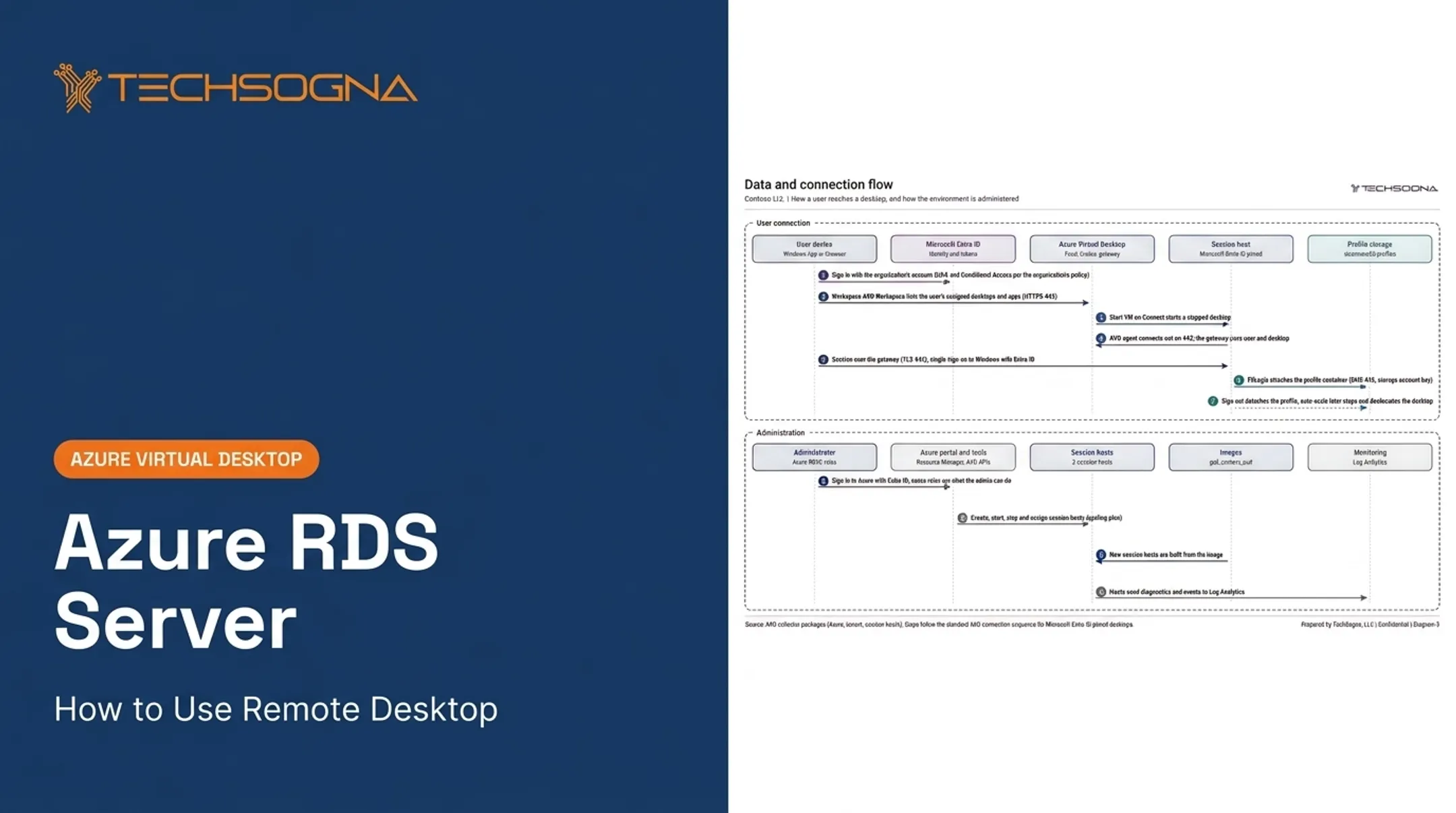
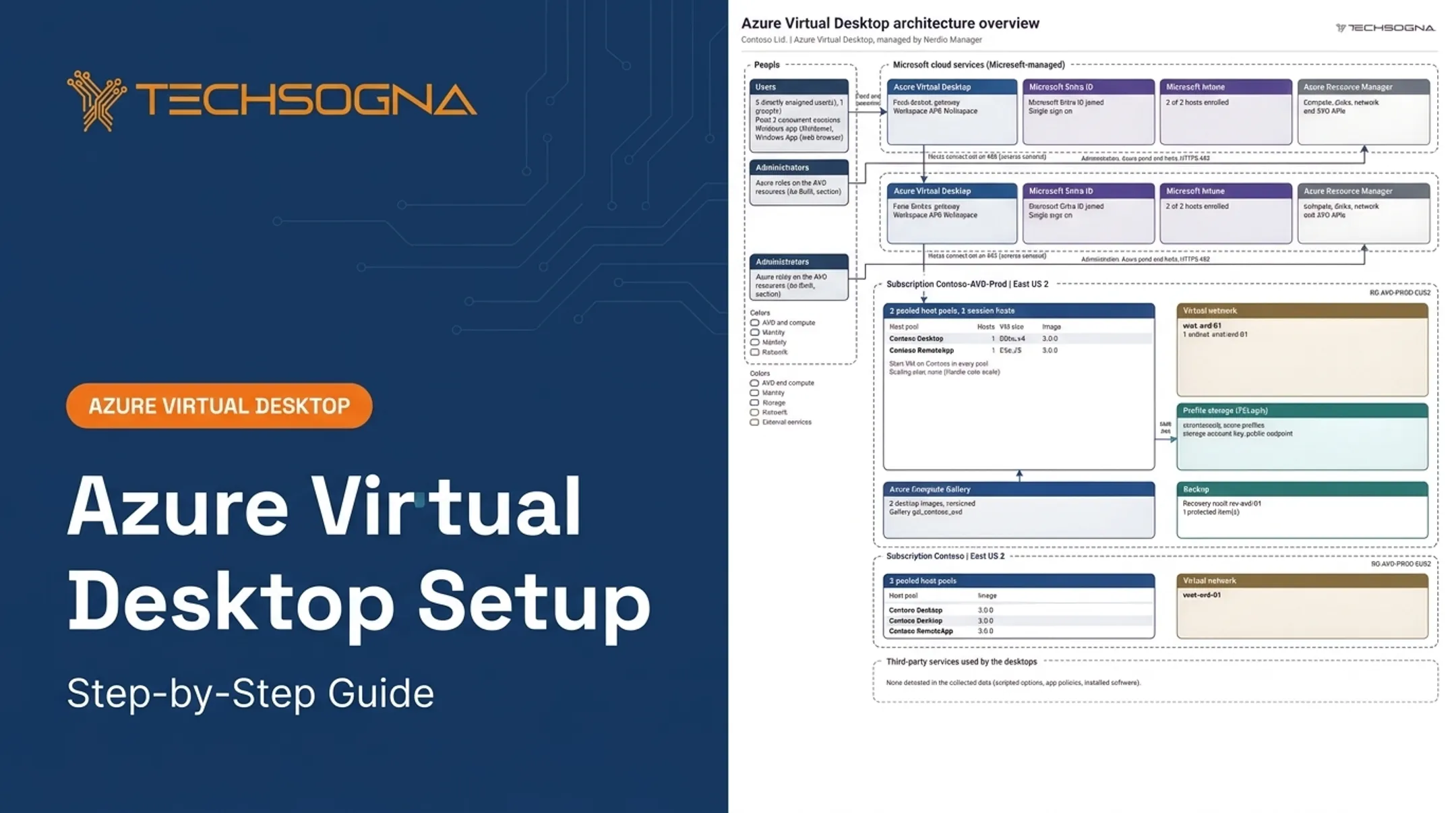
Applications run on session hosts in a host pool. A RemoteApp application group publishes them, a workspace exposes that group, and users or groups receive assignments. Users need Microsoft Entra ID accounts; personal Microsoft accounts are unsupported.

Responsibility splits like this:
- Microsoft: brokering and the AVD service infrastructure
- You or your partner: session host VMs, images, applications, profiles, networking, identity, security policy, monitoring, backup, and recovery
RemoteApp groups require pooled host pools. Personal pools can't publish RemoteApps.
RemoteApps versus full desktops
| RemoteApp group | Desktop group | |
|---|---|---|
| User sees | Selected applications | Full Windows desktop |
| Host pool type | Pooled only | Pooled or personal |
| Per host pool | Multiple groups | One group |
| Typical use | Line-of-business apps | Full workspace |
Users assigned both types get a surprise. The host pool's PreferredAppGroupType controls what appears, and the portal default is Desktop. A dual-assigned user sees only the desktop, not their RemoteApps. Check this setting first when resources go missing, and confirm current behavior on Microsoft Learn.
How to Publish RemoteApps in Azure Virtual Desktop
Confirm prerequisites
You need:
- An existing host pool, session hosts (at least one powered on), a RemoteApp group, and a workspace
- Roles such as Desktop Virtualization Contributor, plus Virtual Machine Contributor for hosts
- A supported 64-bit OS: Windows 11 or 10 Enterprise (or multi-session), or Windows Server 2016 through 2025
- Outbound TCP 443 reachability to required service endpoints; no inbound ports
- Entra ID groups and a supported client
Run an application inventory before deployment. Record executable locations, install context, license limits, profile behavior, redirection needs, and dependencies on file shares, databases, printers, or local hardware.
Prepare the host pool and session hosts
Pick or create a pooled host pool, provision session hosts, and join them to your identity model (Entra-joined or AD DS-joined, per Microsoft guidance).
Build from a hardened image and install applications in an administrative context for all users. Some installers reject multi-session Windows, and per-user installs can vanish after sign-out.
Create the application group
In the Azure portal, go to Azure Virtual Desktop > Application groups > Create. Select RemoteApp, choose the host pool, name the group, and register it with a workspace. Portal labels change over time, so verify the steps against Microsoft Learn.
Publish and configure applications
Open the group, then Applications > Add. Sources include:
- Start menu: pick a discovered app, set a display name, and review the path
- File path: set the executable path, identifier, display name, icon path, icon index (usually 0), and optional command-line arguments
- App Attach: assign the package to the host pool first, then add it to the group
Store app paths change with package versions, so Microsoft documents the stable shell:AppsFolder approach. Test apps that use per-user paths, environment variables, mapped drives, file associations, elevation, or child processes.
Assign users and test
Assign users or groups, refresh the workspace, and confirm each person sees only intended apps. Pilot with representative users and real workflows. Test:
- Sign-in and application launch
- Printing, clipboard, and drive redirection
- Multiple monitors
- Profile persistence and reconnection
- Application shutdown behavior
Automate and document
Document these details for operations and rollback:
- Host pool and image version
- Application paths and assignments
- Workspace and security settings
- Dependencies, rollback steps, and owners
For repeatable builds, use PowerShell (Az.DesktopVirtualization), Bicep, ARM, or Terraform AzAPI. Microsoft states that application publishing isn't supported through Azure CLI. Nerdio Manager is optional management tooling, not part of native AVD.

Configuration Best Practices for AVD RemoteApps
Choose the host pool model
RemoteApps require pooled hosts, which suit standardized apps. Personal hosts fit persistent, heavily customized workloads, but they work with Desktop groups only.
Microsoft offers no universal RemoteApp users-per-VM figure. Concurrency depends on hardware and app behavior, so measure your own workload. Breadth-first load balancing spreads sessions; depth-first fills hosts first and works well with autoscale. Set MaxSessionLimit explicitly.
Design application groups and workspaces deliberately
Organize groups by department, security boundary, dependency, or lifecycle. Don't publish everything to everyone. Users in several RemoteApp groups in a host pool receive the combined set, so overlapping assignments create cluttered feeds and confusing behavior.
Prepare applications for multi-user delivery
Test each app type before go-live:
- Office applications and collaboration tools
- Line-of-business and legacy software
- Browsers
- Printing and file associations
- Apps with separate helper processes
- Anything needing hardware or interactive elevation
Check licensing terms, shared config files, update processes, and temp file locations. Intune supports multi-session hosts, but deploy apps in device context.
Plan identity, profiles, and experience
Use Entra ID groups, least-privilege roles, Conditional Access, MFA, Intune, and Defender. Pooled users land on different hosts, so FSLogix profile containers attach a full profile at sign-in. Keep the storage account in the hosts' region, and test profile design against your actual app mix.
Manage lifecycle and scaling
Version images, patch on a schedule, and replace hosts instead of repairing them. Keep a rollback path for every application-group change.
Autoscale can cut idle compute, but savings aren't automatic. Compare against business schedules, app start times, and real usage. In one sample environment, a cold-start host took about 5.5 minutes to boot, so weigh start delays against savings.
Security, Performance, and Cost Considerations
Secure the delivery path
Layer these controls:
- Conditional Access and MFA, targeting Azure Virtual Desktop and Windows Cloud Login
- Defender for Endpoint and antivirus on session hosts
- Network segmentation and Private Link where appropriate
- Restrictive RDP properties such as
redirectclipboard,redirectprinters, anddrivestoredirect - Just-in-time administration instead of direct RDP to hosts
RemoteApps reduce what's installed locally, but they don't stop screenshots, copy and paste, exfiltration, or credential misuse. Redirection policies address clipboard and drive leakage; screen capture protection covers capture on supported clients but isn't DRM-level protection.
Publishing an app doesn't block users from launching unpublished ones. Microsoft points to App Control or AppLocker for that.
We often see health checks flag open redirection, such as all drives and USB devices allowed on a RemoteApp pool. Review it deliberately.
Optimize experience and reliability
Microsoft recommends round-trip latency under 150 ms and hosts near users. Plan for these factors as well:
- App startup time
- Host resource pressure
- Profile performance
- Graphics needs
RDP Shortpath uses UDP and falls back to TCP.
Troubleshoot in layers:
- Endpoint
- AVD connection service
- Session host
- Application, profile, and identity
- Network
Not every launch failure is an application-group problem. AVD Insights shows round-trip time, input delay, CPU, memory, and session history.
Build a complete cost model
Include:
- Azure compute, storage, and networking
- Monitoring and backup
- Identity and security tooling
- Windows and application licensing
- Support labor and management platform fees
Access licensing and Azure consumption are separate. Eligible licenses such as Microsoft 365 E3 or Windows Enterprise cover access, not infrastructure charges.
External commercial users are priced per user: $5.50 per month for apps and $10 for desktops. Model peak and off-hours demand, and skip the generic claim that RemoteApps are cheaper.

Choose the Right Use Case and Plan Next Steps
Strong RemoteApp use cases
- A few regulated or specialized apps, such as HR or finance tools
- Contractors and BYOD users
- Legacy Windows software
- Centralized application updates
- Distributed teams without per-endpoint installs
Consider alternatives when users need more:
- A full AVD desktop for complete workspaces
- Windows 365 for a dedicated persistent Cloud PC at a fixed price
- Local installs for light, endpoint-friendly apps
- A standard Azure VM when you prefer to own OS patching and software
Use an assessment-led rollout
- Discover applications and users that need RemoteApp access
- Review licensing and map dependencies
- Assess network and identity readiness
- Design host pools around the target apps
- Pilot, document, and hand off operations
Define success beyond a finished deployment:
- Secure access and app compatibility
- User experience and supportability
- Recoverability and governance
- Predictable cost
Specialist implementation support
TechSogna is a Microsoft cloud desktop consultancy that assesses, designs, deploys, secures, documents, optimizes, and co-manages AVD environments for U.S. organizations. TechSogna is a Microsoft Partner and Authorized Nerdio Partner, with engineers who hold Microsoft Certified: Azure Virtual Desktop Specialty and Nerdio Manager for Enterprise credentials.
Fixed-fee assessments start at $3,500, depending on environment size. If you're planning RemoteApps or auditing an existing deployment, ask TechSogna about an AVD assessment or deployment plan.
Frequently Asked Questions
What is Azure Virtual Desktop RemoteApp?
It publishes individual Windows applications from AVD session hosts through a workspace. Users get the apps, not a complete virtual desktop.
How does RemoteApp differ from a full desktop?
A RemoteApp group exposes selected apps on pooled hosts. A Desktop group exposes the full Windows desktop on pooled or personal hosts.
Can I use Azure VM for free?
New accounts get a $200 credit for 30 days plus selected free services for 12 months. VM compute, storage, and networking can incur charges beyond allowances, so check current Azure offer terms.
How do I access a virtual machine in Azure?
Administrators can use Azure Bastion or other controlled paths. End users reach AVD RemoteApps through the Windows App or a browser.
What is the difference between Azure VM and Azure App Service?
A VM gives you control of the operating system and its maintenance. App Service is a managed platform for web apps and APIs. Neither is Azure Virtual Desktop.
What is the Azure app used for?
The Azure mobile app monitors and manages Azure resources. For AVD, users connect with the Windows App, a separate product.