Introduction: Why Azure Virtual Desktop Optimization Tools Matter
A session host can be technically healthy and still frustrate everyone who uses it. Logons drag, Teams stutters, and the Azure bill creeps up while nobody can say why.
Optimization is rarely one script. It spans the Windows image, policies, applications, profiles, scaling, monitoring and cost controls, and each layer needs its own tool.
In one sample assessment dataset, typical sign-in took 50 seconds, yet 1 in 10 connections took over 2 minutes 11 seconds, mostly waiting for a stopped desktop to start. A cleaner image would not have fixed that. Scaling configuration would.
This guide walks through the tools that matter (VDOT and its successor, Intune, Group Policy, Nerdio Manager, Azure monitoring, image automation) and a safe process for using them.
Key Takeaways
- VDOT tunes the Windows image. It does not manage your AVD environment.
- Policy, orchestration, monitoring and scaling tools solve different problems and often work together.
- Test every change against real apps, profiles and security controls first.
- Judge success by measured user experience, reliability and cost, not tool defaults.
What Does AVD Optimization Include?
Image and operating-system optimization
Removing unneeded components, cutting background activity and tuning Windows settings can lower resource use on each host. Microsoft's VDI guidance, for example, recommends disabling Storage Sense on AVD Enterprise and multi-session hosts.
Every setting still has to be checked against your applications and security requirements. A change that helps one workload can break another.
Session host, profile and application optimization
Plenty of performance problems sit outside the base image:
- FSLogix profile containers, storage tier and container sizing
- Published apps and RemoteApp configuration
- Microsoft 365 Apps, using shared computer activation on shared images
- Teams media optimization (SlimCore or WebRTC-based, each with its own prerequisites)
- Network behavior such as RDP Shortpath and latency to Azure
After a migration, slow performance usually traces back to FSLogix configuration, image design, host sizing or network settings that did not carry over cleanly.
Monitoring, scaling and cost optimization
A well-tuned image cannot rescue a wrongly sized VM, a poor scaling schedule, a storage bottleneck or missing monitoring. These are ongoing controls, not one-time image work.
Always-on session hosts represent 100% of baseline spend. Nerdio's best-case scenario shows auto-scaling reducing that to as low as 20%, though actual savings depend on users, schedules and VM sizes.

Which Azure Virtual Desktop Optimization Tools Can You Use on Windows?
Virtual Desktop Optimization Tool (VDOT)
VDOT reviews or changes Windows services, scheduled tasks, AppX packages, policies and cleanup settings through JSON configuration files. Microsoft's VDI optimization article links to it.
Know its status before adopting it. The original repository now points future development to the Windows Desktop Optimization Tool (WDOT). WDOT is community-supported, ships under a sample code license and carries no warranty or support guarantee. Confirm whether Microsoft product support covers either tool before you rely on it in production.
Defaults are conservative. Per the repository, AppX entries stay Unchanged unless set to Disabled, and scheduled tasks are only disabled when marked so. Even so, VDOT warns against removing the Microsoft Store or disabling its install service, since updates can be blocked and vulnerabilities can result.
Intune and Group Policy
Which one fits depends on join type:
- Intune: Entra-joined and hybrid-joined hosts, plus scripts and Settings catalog policies. Multi-session support is generally available for qualifying pooled deployments.
- Group Policy: domain-joined hosts, with the AVD administrative template for AVD-specific settings.
- Local policy: not recommended at scale.
Watch the update limits. Windows Update rings are unsupported on multi-session hosts, and Autopatch/Windows Update for Business and hotpatch are listed as unsupported there too. Enrollment succeeding does not mean patching is covered. Group Policy is also a common cause of slow logons, so audit it.
Nerdio Manager
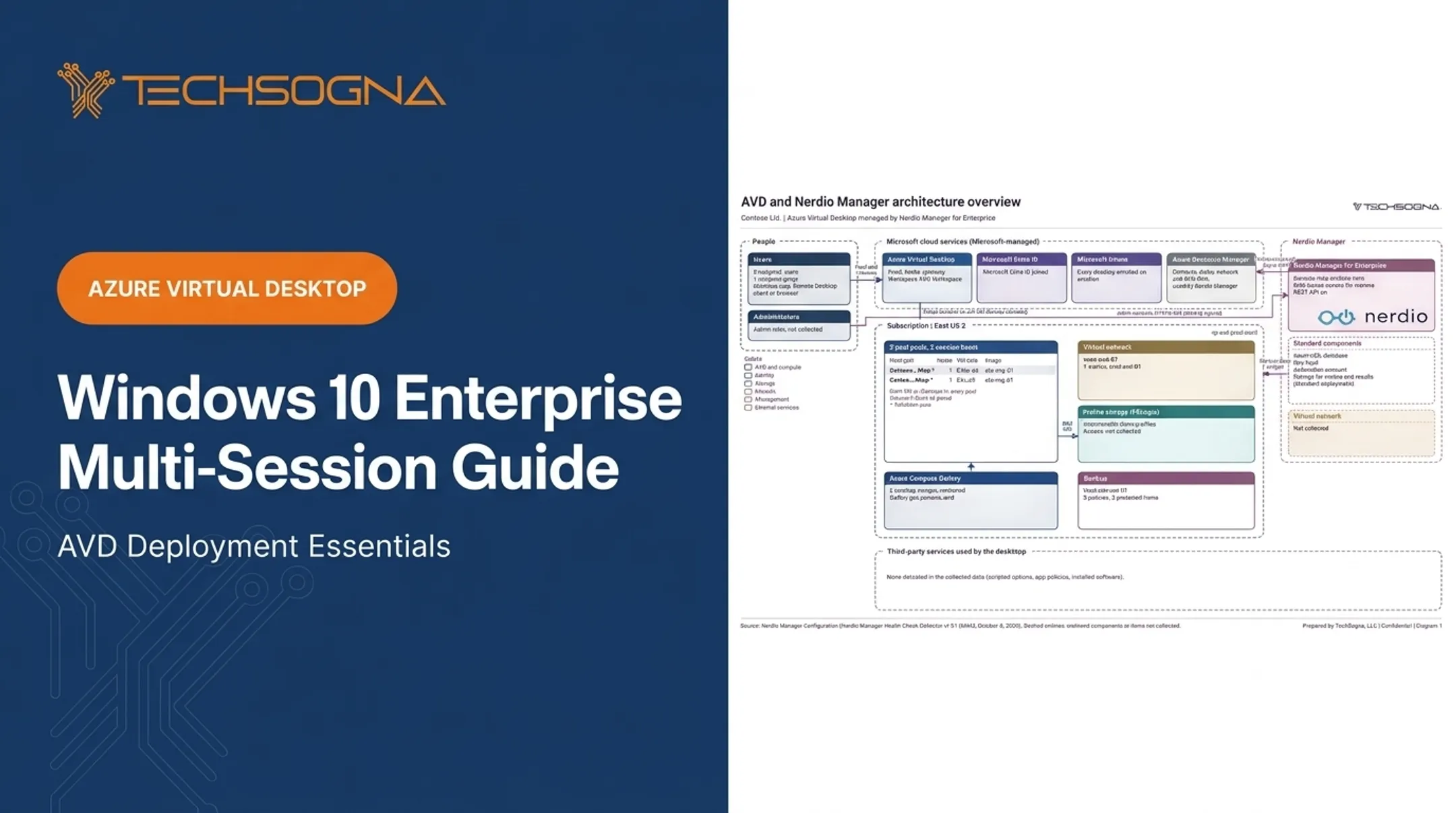
Nerdio Manager adds an operational layer: image creation, scripted actions, host management, auto-scaling and cost reporting. It does not replace Windows-level tuning. You would still reach for VDOT/WDOT or policies to change the OS itself.
Two cautions. Nerdio's savings figures compare against a projected native baseline, so treat them as vendor estimates. And Microsoft warns against combining native autoscale with other scaling tools, so pick one controller per host pool.
TechSogna is a Microsoft Partner and Authorized Nerdio Partner. Its AVD and Nerdio assessments, optimization and business-hours co-management serve teams without dedicated VDI expertise.
Azure Monitor, AVD Insights and Log Analytics
AVD Insights is an Azure Monitor workbook that surfaces logon delays, host health, connection quality, resource pressure and recurring errors. It requires:
- AVD diagnostics sent to a Log Analytics workspace
- Azure Monitor Agent with a Data Collection Rule for performance counters and Windows Event Logs
- Host pool log categories such as Connections, Errors and AgentHealthStatus
The older Log Analytics agent retired on August 31, 2024, so use Azure Monitor Agent. Log Analytics charges apply.
Azure Cost Management, Advisor and scaling capabilities
Cost Management shows billing. Advisor flags underutilized VMs for resizing or shutdown, but its estimates can use retail prices and omit reservations, so they may overstate savings.
Native scaling plans handle schedules and idle capacity. Power management starts and stops existing hosts, while dynamic autoscaling also creates and deletes them. Each pool takes one plan. Reservations and savings plans (1- or 3-year terms) cover steady baseline compute.
Image automation and version management
Azure Image Builder, Azure Compute Gallery and custom image templates produce versioned, repeatable images with scripts and automated Sysprep. Pipelines such as Azure DevOps can call Image Builder, though its DevOps task is in preview and lacks Windows Restart support. Compute Gallery handles replication and versioning, but plan your own fleet rollback process rather than assuming one runs automatically.
How to Choose the Right AVD Optimization Tools
Start with the optimization outcome
Name the goal first: faster logons, snappier apps, higher density, lower spend, audit evidence, easier image upkeep or better troubleshooting. Different goals point to different tools.
Match the tool to the management layer
| Need | Tool layer |
|---|---|
| Baseline OS changes | VDOT/WDOT, image build scripts |
| Policy enforcement | Intune or Group Policy |
| Lifecycle operations | Nerdio Manager or automation |
| Visibility and diagnosis | Azure Monitor, Insights, Log Analytics |
| Cost and capacity | Cost Management, Advisor, scaling plans |
Check Windows, join type and workload compatibility
Confirm before choosing:
- Windows edition and release, and single- versus multi-session
- Entra join or hybrid join
- Microsoft 365, Teams and line-of-business app needs
- Graphics requirements and FSLogix dependencies
Windows 10 general support ended October 14, 2025. Extended Security Updates are not ordinary lifecycle support.
Review security, compliance and reversibility
Disabling services or packages can open security, update or app-support gaps. Microsoft recommends endpoint protection on all session hosts, so use FSLogix's documented exclusions instead of switching protection off.
For every change, require:
- Change approval and documented exceptions
- Snapshots during image builds
- A tested rollback path
Consider ownership, licensing and operational overhead
Ownership models differ:
- Free scripts cost nothing to license, but you own every update and every exception
- Microsoft services need configuration and a telemetry budget
- Third-party platforms add licensing but reduce admin effort
- Internal automation depends on staff skills
Pick what your team can keep current.
A Safe Workflow for Optimizing Windows Session Hosts
- Baseline first. Capture logon duration, cold-start time, CPU and memory pressure, profile load, network round trip, disconnects, incidents and Azure spend, using AVD Insights and Nerdio job history where available.
- Build from a controlled image. Start with a Microsoft-supported Windows multi-session image, apply updates and document apps, security agents, language settings and dependencies. Never join the golden image to a host pool.
- Review configuration files. Read the JSON files line by line, keep required components and document each exception.
- Test in an isolated staging pool. Use representative accounts, FSLogix profiles, Microsoft 365, Teams, printers, security tools and admin workflows. Note that the AVD "validation" flag gets service updates early; it is not image testing.
- Version and deploy in stages. Use Compute Gallery or an approved Nerdio workflow with version labels, change records, canary hosts and a rollback procedure. Disable autoscale during native session host updates.
- Monitor and iterate. Compare against the baseline, watch for delayed failures, collect user feedback and schedule recurring reviews.

How to Measure Results and Avoid Common Optimization Mistakes
Measure user experience and technical health together
Track experience and host health together:
- Logon time, app launch and disconnects
- Profile issues and support tickets
- CPU, memory, disk and network indicators
- Host availability
Keep two latency measures separate. Microsoft's connection quality guidance recommends round-trip time below 150 ms. Insights input delay rates under 150 ms as good, 150-500 ms acceptable, 500-2,000 ms poor and above 2,000 ms bad.

No independent benchmark establishes a universal gain from any tool, so avoid promising one.
Do not apply aggressive defaults without workload testing
Blindly disabling services, scheduled tasks, AppX packages, Defender components or update mechanisms is how optimization causes incidents. Microsoft also documents Sysprep failures when provisioned Store packages become inconsistent. In one assessment, removing browser update services from an image led to a RED rating, and an outdated Chrome build drove most critical vulnerabilities.
Treat optimization as an operating practice
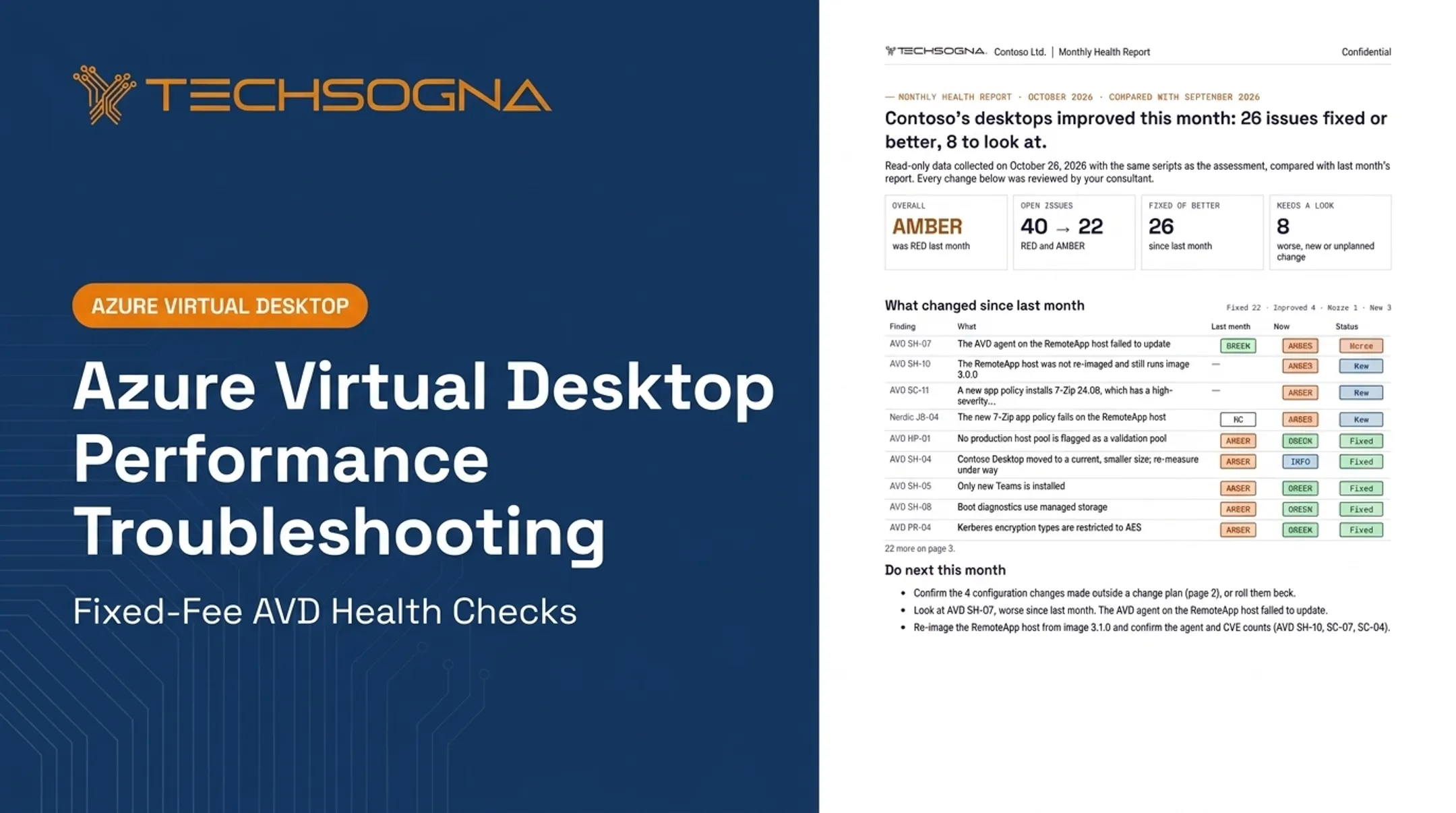
Windows updates, app changes, FSLogix releases and pricing changes can undo earlier tuning. One reassessment saw an AVD agent failure move a host from GREEN to AMBER, and a new app policy introduced a vulnerable 7-Zip version. Assign owners, schedule reviews and keep an as-built record of image and policy changes.
Frequently Asked Questions
What is the best optimization tool for Azure Virtual Desktop?
It depends on the outcome. Use VDOT/WDOT for image tuning, a platform like Nerdio for lifecycle work, Azure tools for monitoring and cost, and Intune or Group Policy for enforcement.
Is VDOT safe for Windows 11 AVD?
It can be, once you review its configuration and test it. VDOT's repository points to WDOT as its successor, so verify supported versions, keep required components and stage first.
How do I optimize a Windows 11 image for AVD?
Start from a supported multi-session image, apply updates, and document apps and security needs. Apply reviewed settings, test in staging, version the image and roll out gradually.
Does Nerdio replace VDOT?
No. Nerdio handles orchestration, images, scripted actions and scaling, while VDOT changes Windows settings. Nerdio scripted actions can run optimization scripts during image builds.
How can I measure whether AVD optimization worked?
Compare pre- and post-change logon, application, resource, reliability, support and cost figures using representative workloads.
Can Intune optimize AVD session hosts?
Partly. Intune enforces policies, deploys scripts and configures supported hosts, but join type, multi-session update limits and image management still need other tools.