Microsoft announced general availability of external identities for Azure Virtual Desktop (AVD) on November 18, 2025. The recommended model is simple. Invite the person as a Microsoft Entra B2B guest, authorize that guest in your AVD environment, and let them connect through Windows App with their own credentials.
This guide covers how it works, what to verify first, how to configure it, how users sign in, and where the limits are.
Key Takeaways
- External users authenticate at home; your Entra tenant controls what they can reach.
- Admins need two grants: application-group assignment and a VM login role on each session host.
- Licensing, Azure consumption, and governance costs still apply.
- Client, profile, Intune, and on-premises authentication limits decide which scenarios fit.
How External Identity Access Works in Azure Virtual Desktop
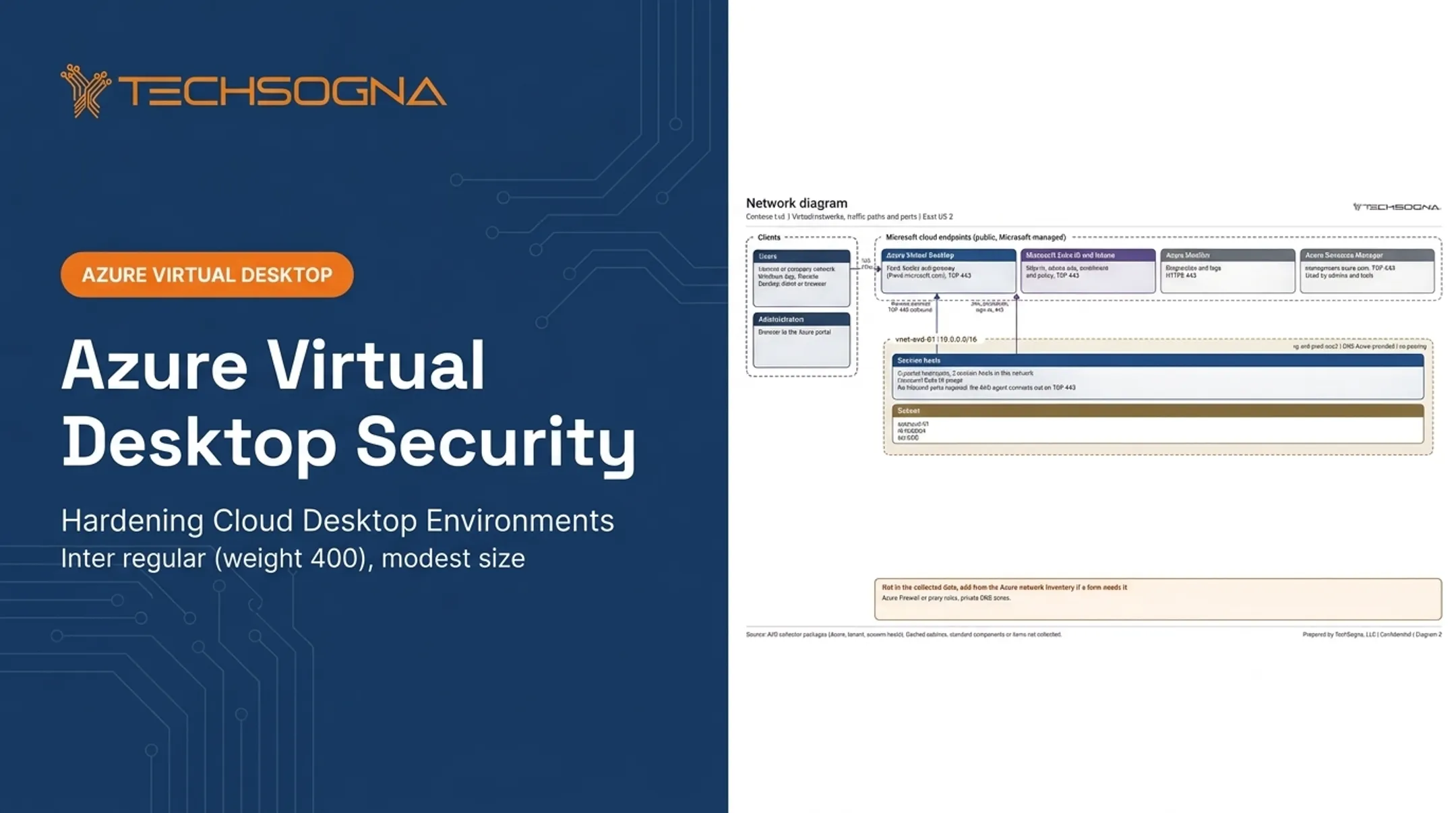
Authentication and authorization happen in different places. The external user proves who they are through their home tenant or a supported identity provider. Your tenant then decides which desktop or RemoteApp that guest may use, and applies its own Conditional Access and cross-tenant settings.
External identities versus separate accounts
Unlike a separate local account you create and manage, a B2B guest is a named identity from their home tenant, represented in yours. No shared passwords and no second credential to reset. Guests still fall under your governance. You manage invitation redemption, assignments, Conditional Access, reviews, expiration, and offboarding.
The AVD resource path
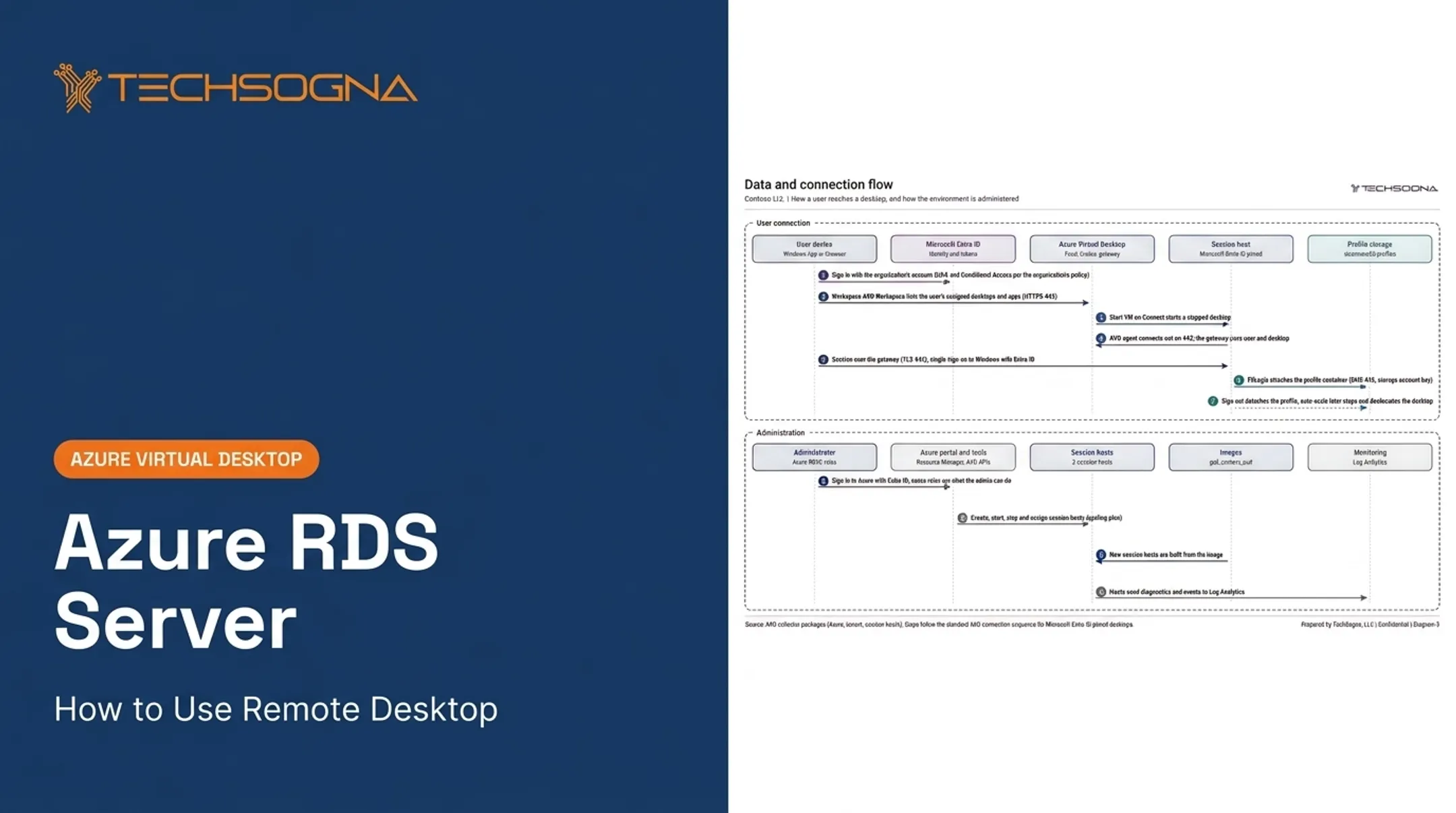
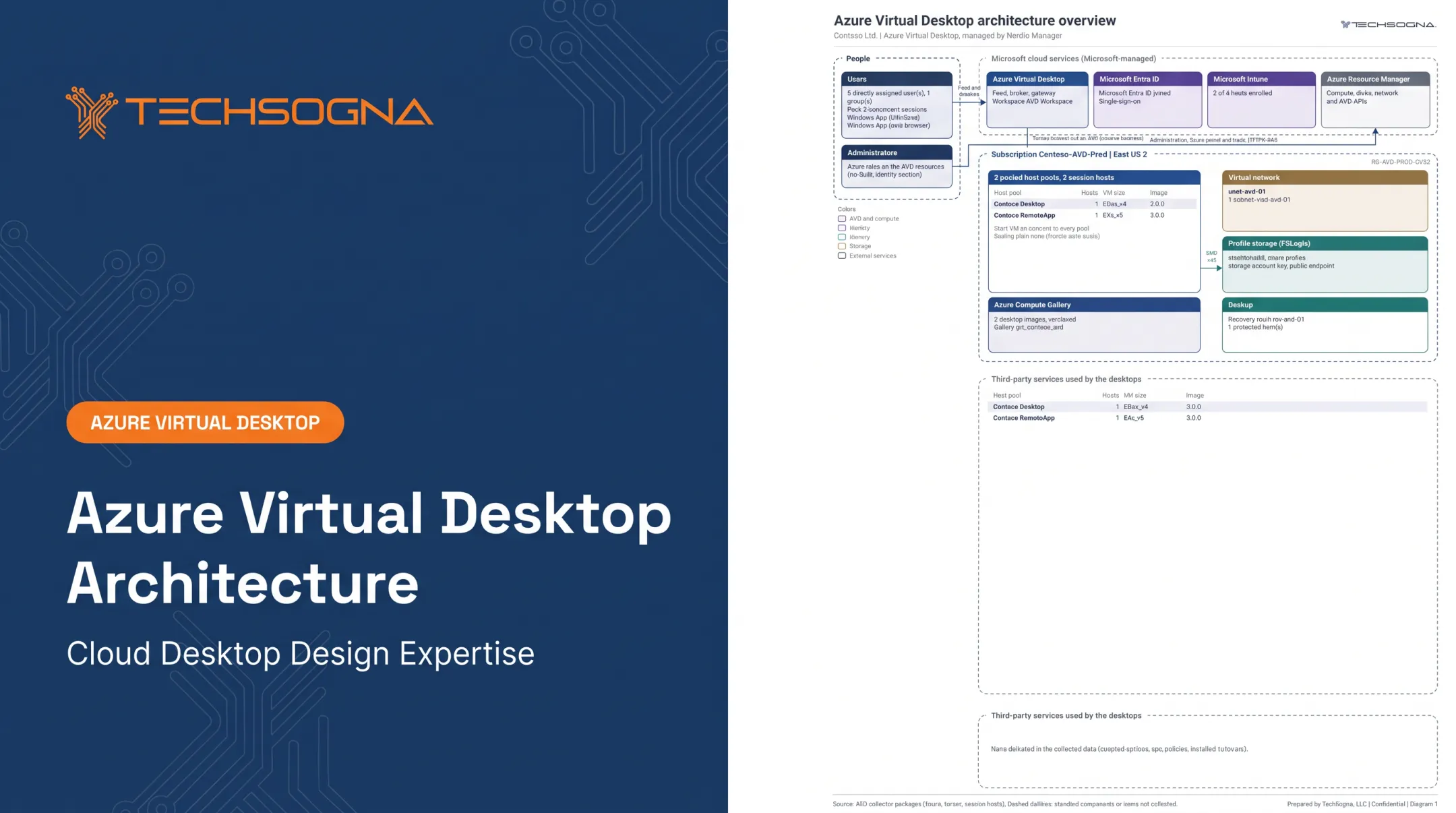
The flow runs from Entra invitation to guest object, application-group assignment, workspace publication, connection broker, and session host. Microsoft's terminology guide defines the pieces:

- Host pool: Azure VMs registered as session hosts
- Application group: Desktop or app access control on one host pool
- Workspace: Grouping of application groups; association is required for resources to appear
- Desktop application group: Full Windows desktop
- RemoteApp application group: Selected apps only, on pooled host pools
Match the assignment to the task. A vendor who needs one line-of-business app should get a RemoteApp, not a full desktop.
Take a contractor from Fabrikam, Microsoft's own example. Using her existing work identity, she sees only the resources Contoso assigned to her.
What External Users Need Before They Connect
Verify each item against current Microsoft documentation, because support has changed quickly.
Identity and environment
- A redeemed invitation to your tenant
- A supported identity: same-cloud Entra users, social identities, or other registered providers. One-time-passcode sign-in is excluded.
- Public Azure or Azure for US Government. 21Vianet and cross-cloud users are not supported.
- Session hosts running Windows 11 Enterprise 24H2 or later (with KB5065789+) or Windows Server 2025 (with KB5073379+)
- Entra-joined hosts. Hybrid join does not meet the requirement.
- Entra authentication single sign-on enabled on the host pool
Licensing and cost
AVD access still requires rights in your tenant:
- Eligible Microsoft 365 or Windows Enterprise licenses can cover employees
- External non-employees use Microsoft per-user access pricing: $10 per user per month for desktops, $5.50 for apps
- Azure compute, storage, and networking bill separately, per Microsoft's AVD pricing
- Conditional Access needs Entra ID P1; risk-based policies need P2
Clients and profiles
Windows, macOS (GA September 2026), iOS (GA October 2026), Android, and desktop web are supported. Android social-account support is narrow, and mobile browsers are unsupported. Confirm before promising any endpoint.
Profile and policy limits to plan for:
- FSLogix profiles for external users reached GA in May 2026, using Azure Files with Entra Kerberos
- External identities cannot use Kerberos or NTLM to reach on-premises resources
- Intune device-configuration policies assigned to the external user do not apply on the session host, so assign them to the device
How Administrators Configure External User Access
Start with an access plan
Define the persona, the apps, desktop versus RemoteApp, the engagement length, and data-handling rules. Decide early whether the work needs a persistent profile or on-premises authentication, since both limit options.
Invite the external user
In the Entra admin center, go to Users, then Invite external user, enter the email, and send. The recipient accepts the invitation and the permissions request. Guest Inviter or User Administrator roles are sufficient.
Confirm the intended person redeemed it. Never share internal credentials; every external user gets an individual identity.
Assign the guest to AVD resources
- Add the guest to an Entra group.
- Assign that group to the application group.
- Grant Virtual Machine User Login on each session-host VM.
- Associate the application group with a workspace.
Then test with a pilot guest. They should see only the intended resources.
Apply identity and session controls
- Require MFA and Conditional Access in the resource tenant.
- Use cross-tenant access settings to control inbound access. Trust settings can accept partner MFA, but requiring managed-device claims can block guests lacking home-tenant device trust.
- Restrict redirection with RDP properties:
redirectclipboard:i:0for clipboard, an emptydrivestoredirect:s:for drives, and an emptyusbdevicestoredirect:s:for USB. Printer redirection is set in the host pool or by Intune/GPO. - Add screen capture protection or watermarking where data is sensitive. RemoteApp is not watermarked, and screen capture protection is not DRM.
Health-check reviews often find a RemoteApp pool still allowing all drives and USB devices, with Conditional Access covering only a pilot group. Check both.
Operate the lifecycle
Assign an invitation owner or sponsor. Use entitlement management access packages for approval, reviews, and expiration. Recurring reviews require Entra ID Governance.
Watch sign-in logs, which show guest type, tenant IDs, and Conditional Access results. Remove guests from application groups when the engagement ends.
Teams without AVD specialists can get help here. TechSogna offers AVD assessments, secure deployment, architecture documentation, and business-hours co-management to validate external access and keep the environment maintained.
How an External User Signs In
On first use, the user accepts the invitation with the invited identity, completes any MFA or consent prompts, and waits for the guest object and assignment to become available.
Windows App sign-in flow
- Open Windows App and select the account picture.
- Choose Sign in with another account.
- Select Sign-in options before entering a username.
- Choose Sign in to an organization.
- Enter the inviting organization's domain name.
- Authenticate with their own credentials.
The organization step matters. Signing in with only an email address may land the user in their home tenant, where no resources exist.

Browser access flow
- Go to https://windows.cloud.microsoft.
- For work or school accounts, open the profile menu, select the three dots beside My Microsoft 365 profile, choose Switch organization, and pick the resource organization.
- For other account types, use
https://windows.cloud.microsoft?tenant=<domainName>.
Supported desktop browsers are Edge 131+, Chrome 130+, Safari 18+, and Firefox 128+.
Launching the session
After authentication, the user picks the workspace's desktop or RemoteApp and completes any SSO or MFA prompt. Seeing the workspace grants nothing extra. Application-group assignments stay the authority.
When resources do not appear
- Confirm the right identity redeemed the invitation.
- Verify the guest's application-group assignment.
- Check they are signed in to the resource tenant, not home.
- Refresh, or sign out and back in.
- Update Windows App or try the browser.
If that still fails, check these next:
- Conditional Access blocks
- Licensing
- Hybrid-joined hosts
- Missing SSO
- Propagation delay
- The VM login role
Security Considerations and Limitations
External-user access has several hard limits. Confirm these against current Microsoft documentation before you design:
- Same-cloud identities only
- Entra-joined hosts and SSO required
- No Kerberos or NTLM to on-premises resources
- Intune policies must target the device
- Client-specific differences in protection features
Broader AVD limits also apply. Microsoft recommends round-trip latency below 150 ms, and above 200 ms may hurt the experience. Browser clients lack smart-card redirection and RDP Shortpath. You still manage session hosts, images, apps, policies, monitoring, and Azure costs.

Fit assessment: External identities suit controlled contractor, partner, vendor, training, and temporary access.
They often need a different design or more testing when you support:
- Long-term knowledge workers
- Persistent user profiles
- Heavy peripheral use
- Device-based policy enforcement
- Deep on-premises integration
Frequently Asked Questions
What are the limitations of Azure Virtual Desktop?
AVD depends on network quality and latency, and carries Azure and licensing costs plus administrative overhead. External users also need same-cloud identities, Entra-joined hosts, and SSO, with no on-premises Kerberos or NTLM.
Can external users access Azure Virtual Desktop with their own credentials?
Yes. Once invited and authorized as guests, eligible users sign in with their home-organization or supported provider credentials.
Do external users need an Entra guest account to access AVD?
In this B2B flow, yes. The resource tenant holds a guest representation for invitation, authorization, policy, and lifecycle, while the user authenticates externally.
Which client can an external user use to connect to Azure Virtual Desktop?
Windows App on Windows, macOS, iOS, and Android, plus Windows App for web on supported desktop browsers. Confirm current Microsoft support for each platform.
Do external users need a separate Azure Virtual Desktop license?
Access rights are required in the resource tenant. A home-tenant license does not automatically cover them. Per-user external pricing is one option, and infrastructure costs are additional.